Top Lords Alliance Setup
Create your kingdom workspace, choose the right alliance from the kingdom ranking and check your first roster readings and the 7-day trial.
On this page
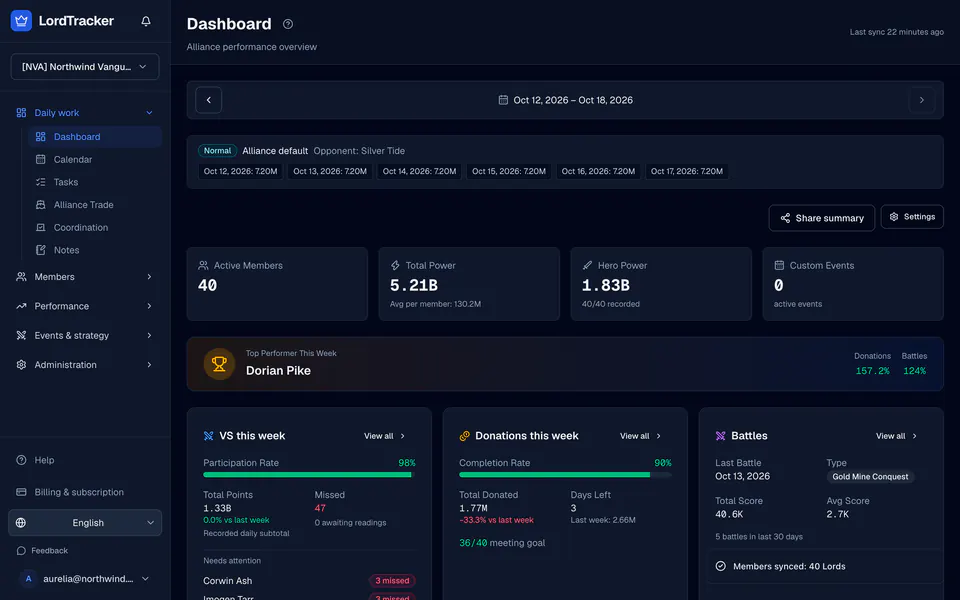
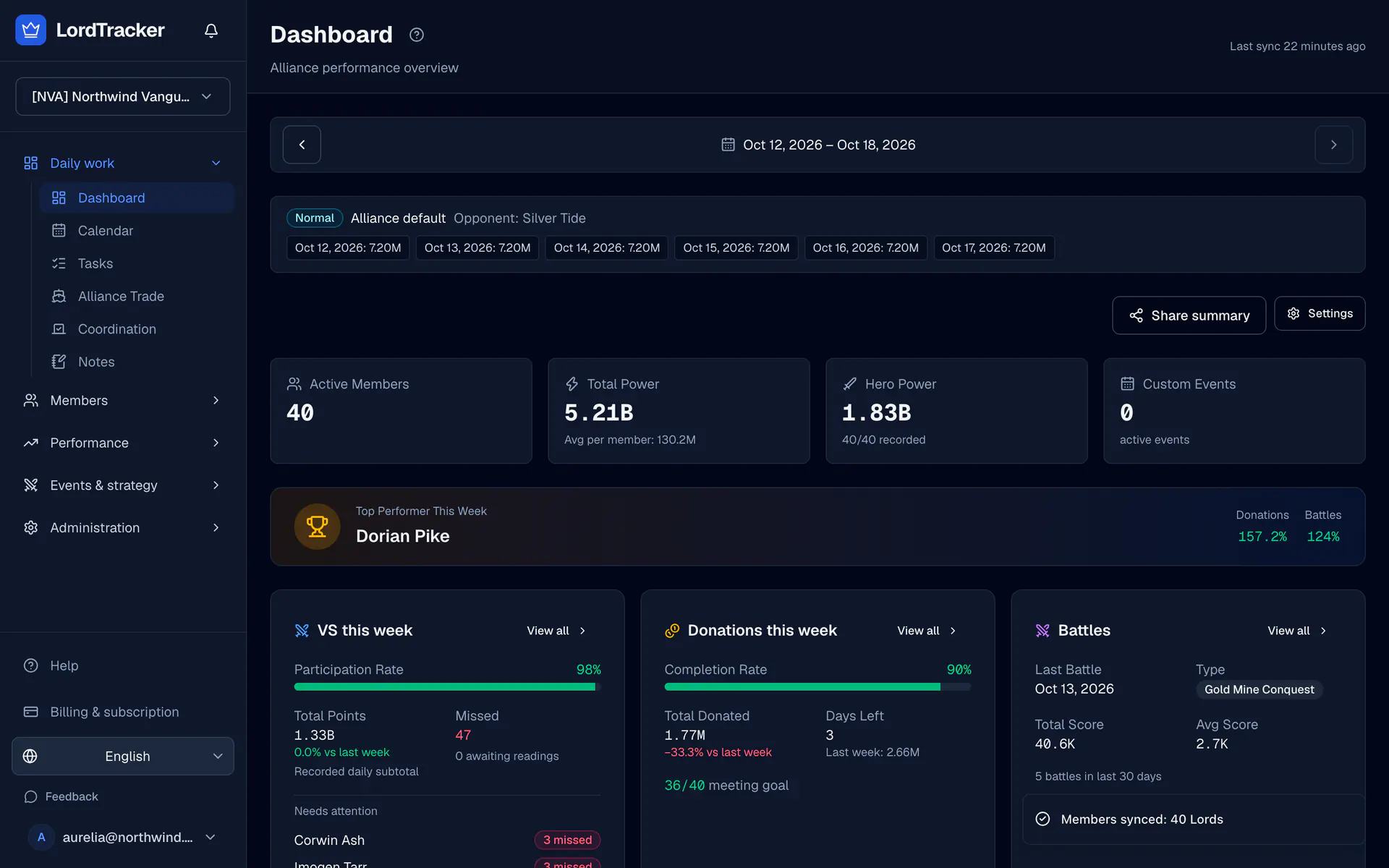
Start with your kingdom number and alliance identity from Top Lords. The workspace follows one kingdom; your managed alliance has its own roster and private tools.
1. Sign in and choose your kingdom
- Open Sign up and sign in with the six-digit code sent to your email.
- On onboarding, enter your kingdom number. The service requests the public alliance ranking for that kingdom.
- Check the kingdom and alliance tag before choosing your alliance. Setup lists only the alliances in the kingdom's captured alliance ranking; an alliance outside it cannot be selected yet. Write to support@lordtracker.com if yours is missing.
Choosing an eligible alliance starts the seven-day Pro trial, with no card needed. Trial eligibility is checked per user and alliance; if the trial was already used, setup says so and links to the plans instead of waiting for a member sync. Pricing explains Small, Pro and Server Bundle.
2. Check roster availability
Open your dashboard and check the roster collection status. Public kingdom ranking collection and private roster collection are separate. A Pro entitlement enables eligible roster auto-sync, but your dashboard must also report that collection is available.
Open Members and compare the recorded names, R1–R5 ranks and dates with the game. A partial capture does not prove an unseen Lord has left. If you need readings that have not been captured, use Import or the relevant CSV workflow.
3. Set your weekly expectations
Open VS → VS settings for days, reset and a default daily target. Use Week details for that week's mode and day overrides. Open Settings → Performance for evaluation targets, thresholds, weights and absence rules.
These are your alliance's expectations. Configure them to match your workflow and read the targets and grades tutorial before using grades for decisions.
4. Invite your team
Use Officers for alliance invitations and member links. The owner manages kingdom managers through Workspace settings → Manage workspace managers. Website roles control access; game R1–R5 ranks do not grant website permissions.
Follow officer and member access, then choose one weekly task: record VS, refresh hero power or review an event run. The alliance tracker explains how these records fit together.
Top Lords Alliance Tracker
Every Lord's power, hero power, kills and growth in one roster, with your kingdom placement.